Desktop App & Pro Workspaces
Multi-monitor setups, tab linking, crosshair sync, and desktop-exclusive performance features.
While TradingView was born in the web browser, professional traders often outgrow the constraints of a single tab. The TradingView Desktop App is engineered to solve the complex needs of multi-monitor, high-performance trading setups—the kind previously reserved for proprietary trading floors.
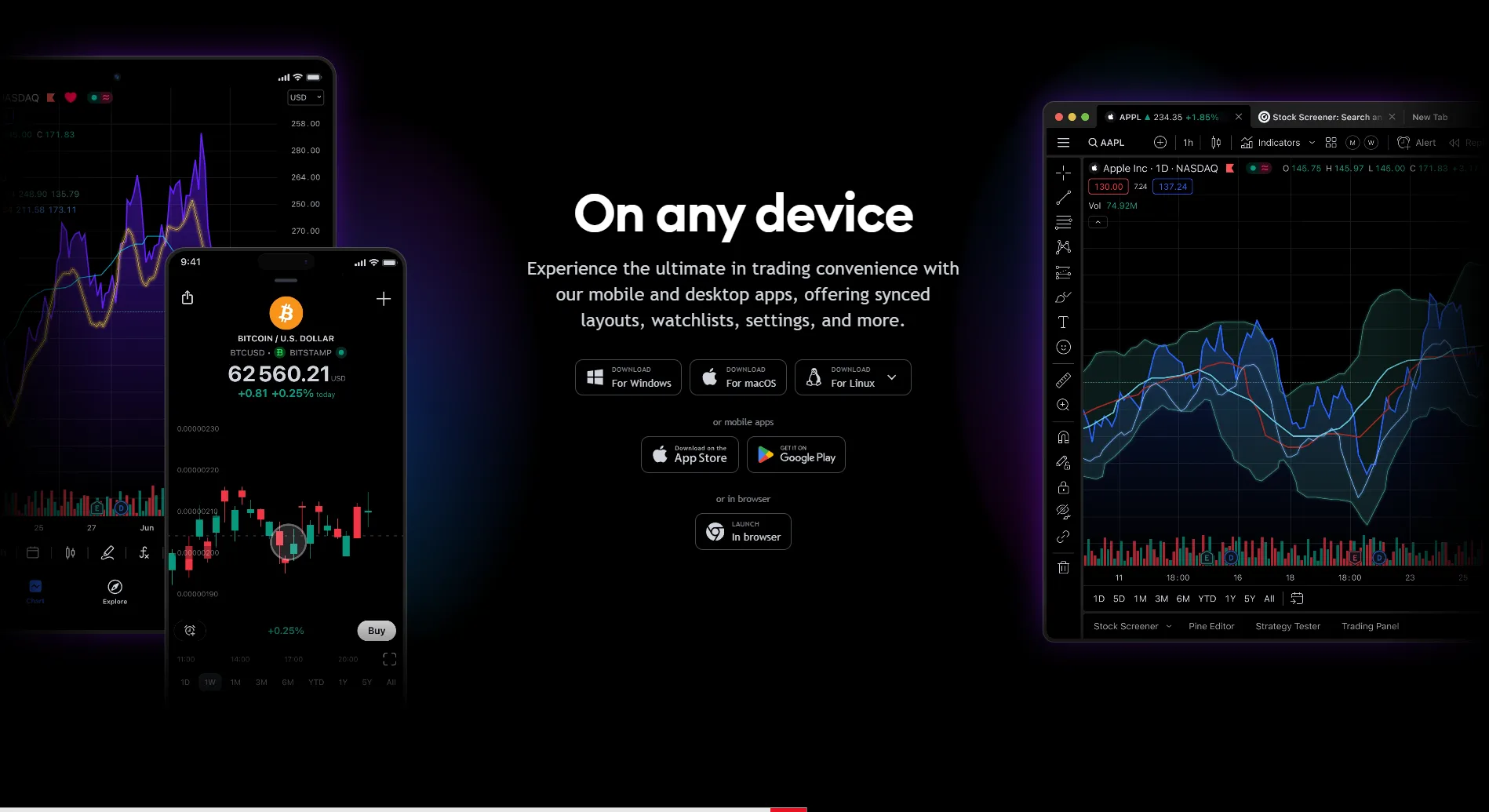
Built natively for Windows, macOS, and Linux, the Desktop application provides a dedicated environment for your charts. It operates completely independently of browser resource limits, tab clutter, and the constant battle for RAM that Google Chrome users know all too well.
In this final mastery guide, we will explore why serious traders migrate to the Desktop App, how to configure advanced multi-monitor workspaces, how Tab Linking transforms your workflow, and the exact 3-monitor Indian market setup used by full-time Nifty day traders.
1. The Desktop Advantage: Breaking Browser Limits
The TradingView Desktop App represents the platform's most powerful client. While the web browser provides a great experience for casual analysis, professional users running complex Pine Script algorithms across 8 to 16 chart layouts need a fundamentally different level of performance.
The Desktop App eliminates three critical browser limitations:
1. Memory Throttling: Browsers artificially limit per-tab RAM. If a complex indicator requires heavy processing, Chrome will throttle or crash the tab. The Desktop App utilizes native Hardware Acceleration, offloading rendering directly to your GPU.
2. Tab Clutter: In a browser, your trading platform competes for resources (and your attention) with YouTube, email, and 50 other tabs. The Desktop App provides a distraction-free, dedicated environment.
3. Shortcut Conflicts: Browsers frequently intercept keyboard shortcuts. The Desktop App allows for global OS-level hotkeys that execute trades instantly.
Critical warning
The Desktop app uses significantly more RAM than a browser tab. If you are running 4+ chart windows across monitors, ensure you have at least 16GB RAM to prevent throttling.
2. Mastering Native Multi-Monitor Setups
The standout feature of the Desktop App is its native multi-monitor support. You can detach chart tabs into their own independent windows, float them across multiple screens, and seamlessly link them together—creating a professional workstation that rivals Bloomberg terminals.
In a browser, dragging a tab to a second monitor breaks the connection. In the TradingView Desktop App, every window remains part of the same unified application instance. Your crosshairs sync across all monitors instantly, your drawing tools persist globally, and your CPU handles the load as a single coordinated process.
Workspace persistence is the greatest quality-of-life upgrade. When you arrange three windows across three monitors and close the app at the end of the day, TradingView remembers the exact pixel placement of every window. Opening the app the next morning restores your entire 3-monitor layout with a single click.
Key takeaways
- Window Detach: Drag any chart tab outside the main application to instantly create a floating, borderless window.
- Crosshair Sync: Move your mouse on the 1m chart on Monitor A, and see the exact corresponding moment highlighted on the 4H chart on Monitor B.
- Drawing Sync: Draw a trendline on one monitor; it instantly appears on all other monitors displaying that symbol.
- Session Memory: The app remembers the exact size and position of every detached window across all your physical displays.
3. Tab Linking & Symbol Syncing
If you use multiple monitors, 'Tab Linking' is your secret weapon. The Desktop App allows you to assign color tags to different tabs or floating windows.
When you link two or more windows using the same color tag (e.g., the 'Blue' group), their symbols synchronize. If you have a 5-minute chart on Monitor 1 and a Daily chart on Monitor 2 both tagged 'Blue', clicking 'HDFCBANK' in your watchlist instantly changes BOTH monitors to HDFC Bank.
You can also sync timeframes (intervals) across linked tabs, keeping your multi-timeframe analysis perfectly aligned without manual adjustments. This eliminates hundreds of redundant clicks every trading session.
Linking Capabilities
- Symbol Sync: Change the ticker in one window, all linked windows update.
- Interval Sync: Change timeframe in one window, all linked windows update.
- Crosshair Sync: Global mouse tracking across all linked panels.
- Multiple Groups: Create a 'Blue' group for Bank Nifty components and a 'Red' group for global macro indices.
4. Keyboard Shortcuts for Speed Execution
To day trade effectively, you must eliminate mouse dependency. The Desktop App supports deep, native keyboard shortcuts that execute faster than web browser equivalents.
Press `Ctrl + /` (Windows) or `Cmd + /` (Mac) to view the global shortcut overlay. From here, you can navigate tabs (`Ctrl + Tab`), open new layouts (`Ctrl + T`), or jump to specific monitors (`Ctrl + 1-8`).
If you have an Indian broker connected (like Dhan or Fyers), the execution shortcuts are game-changers. Pressing `Shift + B` (Buy) or `Shift + S` (Sell) instantly opens the order ticket. Combined with 'One-Click Trading' enabled in chart settings, you can execute scalps with sub-second latency directly from the desktop client.
Professional tip
If your Desktop App ever feels sluggish during periods of extreme volatility, do not restart it. Instead, press `Ctrl + R` (or use the Service menu) to instantly clear the app cache. Ensure 'Hardware Acceleration' is toggled ON in the settings to offload chart rendering to your GPU.
5. The Professional Indian 3-Monitor Setup
How do full-time Indian index traders set up their TradingView Desktop workspaces? Here is the exact 3-monitor blueprint used by professionals trading Nifty and Bank Nifty options.
Monitor 1 (Execution & Micro): Positioned directly in front of you. A 4-chart layout synced via the 'Blue' tag. Shows 1m and 5m Nifty Spot charts, alongside 1m and 5m Nifty Futures charts. Volume Profile and VWAP indicators are active. The Order Panel for your connected broker is pinned to the right edge.
Monitor 2 (Macro & Options): Positioned to your left. Split into two windows. Window A displays the TradingView Options Chain for Nifty to monitor Delta and Open Interest. Window B contains your 'Red' synced group showing 15m and 1H charts for broader trend context.
Monitor 3 (Sectors & Global): Positioned to your right. A 6-chart layout displaying the major heavyweights (HDFC Bank, Reliance, ICICI, Infosys) alongside global context (India VIX, US Dollar Index). When HDFC Bank breaks support on Monitor 3, you execute the Bank Nifty put option on Monitor 1.
This 3-monitor setup ensures you never have to minimize a window, change a tab, or lose sight of price action during critical market hours.
6. Installation & Zero-Friction Migration
Migrating to the Desktop App takes less than two minutes. Download the installer for your operating system (Windows MSIX, macOS DMG, or Linux Snap). The file size is small and the installation process requires no configuration.
Because TradingView is entirely cloud-based, there is zero migration friction. The moment you sign in to the Desktop App, your entire TradingView profile instantly populates. Every chart layout, every custom Pine Script, every drawn trendline, every watchlist, and every alert transfers perfectly.
Links to TradingView charts from external apps (like Discord or Telegram) will now intelligently bypass your default browser and open directly within the Desktop App, keeping your trading environment isolated and secure.
Professional tip
Configure the TradingView Desktop App to 'Launch on Startup' in your OS settings. By the time you sit at your desk at 8:45 AM IST, your entire multi-monitor workstation is already running, authenticated, and streaming real-time pre-market data. Zero boot-up friction.
Unlock TradingView Pro
More charts per layout, custom timeframes and more indicators per chart.
Common questions
Yes, significantly better for active traders. The Desktop app offers native multi-monitor support, GPU hardware acceleration, OS-level keyboard shortcuts, and zero browser tab clutter. Complex Pine Script indicators run smoother, and you don't have to worry about Chrome suspending your trading tabs to save memory.
Keep reading
- Module undefinedTradingView PlatformsDesktop, web, and mobile — access your charts seamlessly from any device.
- Module undefinedLayout Setup, Save & Quick SearchMulti-chart layouts, sync options, saving configurations, and keyboard shortcuts.
- Module undefinedUnderstanding the Chart WindowDeconstructing the 9 key components of your primary analytical workspace.
- Module undefinedConnecting Indian BrokersA step-by-step guide to connecting Dhan, Fyers, and others directly to the Trading Panel.

Written By
Rohit Singh
Mr. Chartist
With 14+ years of experience in Indian financial markets, Rohit Singh (Mr. Chartist) is a SEBI Registered Research Analyst, Amazon #1 bestselling author, and the founder of Investology — a premium trading ecosystem trusted by a 1.5 Lakh+ strong community across India.
TradingView is a registered trademark of TradingView, Inc. All screenshots, logos and platform imagery are the property of TradingView, Inc. and are used here for educational purposes only under fair use. This content is not affiliated with, endorsed or sponsored by TradingView. (c) 2026 TradingView, Inc. All rights reserved. www.tradingview.com