Stock Screener & Pine Script Editor
Filtering thousands of stocks and building custom indicators with Pine Script.
The Bottom Menu is where TradingView stops being a charting tool and starts being a research workstation. It holds 7 screener types with hundreds of filter fields, the Pine Script v6 editor, the Strategy Tester, and the Trading Panel for simulated and live order entry.
The top menu and left toolbar deal with what you can see. The bottom menu deals with what you cannot: narrowing 2,000-plus NSE listings down to a workable list, encoding a scanning rule as code, and running that rule across a whole watchlist rather than one chart at a time.
This guide goes tab by tab, defines each metric in plain English the first time it appears, and builds a practical workflow for the Indian market — cutting the NSE universe down by market capitalisation, working within the derivatives-eligible list, and understanding which data the screener genuinely carries and which it does not.
1. The Bottom Menu: Five Panels and What Each One Does
The Bottom Menu is a collapsible strip beneath the chart canvas. Clicking a tab label expands it upward over the chart; dragging its top edge resizes it. Clicking the active label again collapses it, which matters during a live NSE session when you want the full canvas back quickly.
Each tab is a separate engine rather than a different view of the same thing. The Screener answers 'which instruments currently match these conditions'. The Pine Editor is where you write code. The Strategy Tester reports what a coded rule would have done historically. The Trading Panel places orders, simulated or real.
The Screener is the discovery layer. It reads a large table of instruments and filters it by fields you choose — exchange, market capitalisation, valuation ratios, price relative to a moving average, volume. Its job is to hand you twenty names instead of two thousand, at which point actual chart work begins.
The Pine Editor exists because dropdown filters run out. TradingView's built-in filters cover common conditions; anything with a sequence in it — 'this happened, and then that happened within five candles' — needs to be written out. Pine Script is the language you write it in, and it runs on TradingView's servers rather than your machine.
The Strategy Tester activates only when a script is declared as a strategy rather than an indicator. It walks through historical candles executing the script's rules and reports what that rule set would have produced on that data. It is a report about the past, and the article below is careful about what that can and cannot tell you.
The Trading Panel connects to a broker or to the paper-trading simulator, so orders can be placed from the same screen the analysis lives on. Nothing about that connection changes the analysis — it removes a context switch, which is a workflow benefit rather than an analytical one.
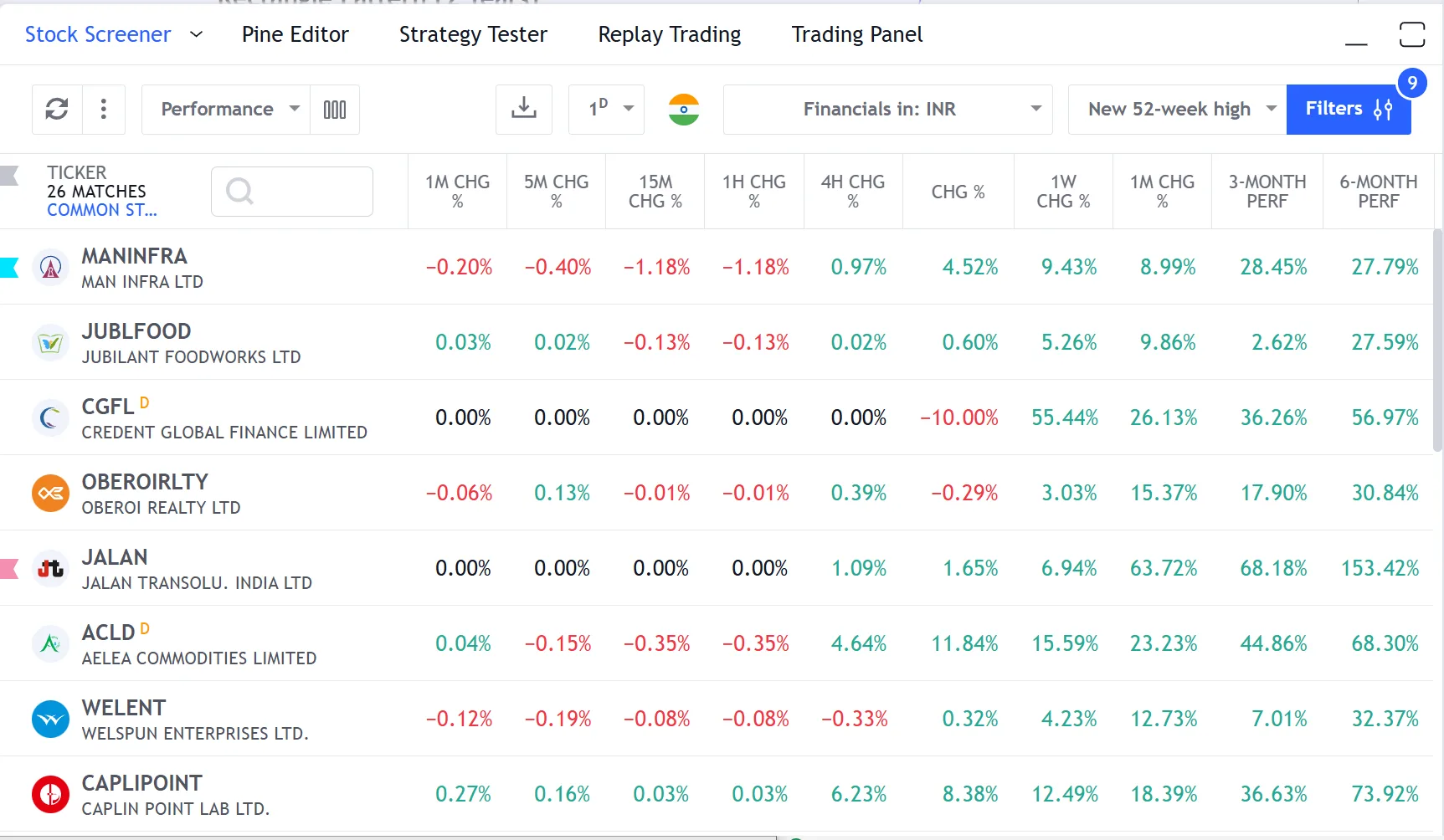
Stock Screener
- 7 screener types (stocks, forex, crypto, ETF, bond, DEX, coins).
- Hundreds of fundamental and technical filter fields.
- Refreshes through market hours rather than end-of-day.
Pine Script Editor
- Version v6, running in the browser.
- 150,000+ community scripts published.
- Syntax highlighting, autocomplete and runtime logging.
Strategy Tester
- Runs coded rules across historical candles.
- Reports metrics such as profit factor, drawdown and Sharpe ratio.
- Trade-by-trade list with entry and exit timestamps.
Trading Panel
- Paper trading simulator using virtual capital.
- Broker connections for supported Indian platforms.
- Order management from the chart canvas.
| Features | TradingView | Traditional Brokers |
|---|---|---|
| Custom Filters | Write your own conditions in Pine Script | Pre-defined dropdowns only |
| Refresh Rate | Updates through the session | End-of-day or delayed |
| Chart Integration | Click a result to load that chart | Copy tickers across manually |
1//@version=52indicator("Screener Condition")3fastMA = ta.sma(close, 50)4slowMA = ta.sma(close, 200)56// True on the candle where the 50-period average crosses above the 200-period7bullCross = ta.crossover(fastMA, slowMA)8plotshape(bullCross, style=shape.triangleup, color=color.green, size=size.large)A moving-average crossover condition, marked on the chart
The screener narrows the field. Pine Script describes conditions the dropdowns cannot. The Strategy Tester tells you what a rule did on old data — which is the beginning of a question, not the end of one.
Key takeaways
- Screener: narrows a large instrument list down to the ones matching conditions you set.
- Pine Editor: where you write scanning or indicator logic that dropdown filters cannot express.
- Strategy Tester: reports what a coded rule would have done on historical candles. A report, not a forecast.
- Trading Panel: simulated or live order entry from the chart, removing a context switch.
- Each tab is a separate engine; the panel resizes by dragging its top edge and collapses by re-clicking the active tab.
Official resources
2. Stock Screener: Cutting the NSE Universe Down to Size
Open the Stock Screener tab and the first thing to do is set the exchange. With Exchange set to NSE, the table becomes the Indian listed universe — roughly two thousand names, which is far more than anyone can look at. Every filter after this one exists to make that number smaller.
Market capitalisation is the most effective first cut. Market cap is simply share price multiplied by the number of shares outstanding — the total rupee value the market places on the company. Setting a floor at, say, ₹10,000 crore removes the illiquid end of the list, where a single order can move the price and where chart structure is often meaningless.
Liquidity deserves its own filter alongside it. Average volume over 30 days tells you how many shares change hands on a normal day. A stock whose average is 20,000 shares cannot absorb a meaningful position without slippage — the gap between the price you expected and the price you actually got, caused by there being too few resting orders at your level.
Now the fundamental fields, each of which is worth defining. P/E, the price-to-earnings ratio, is the share price divided by earnings per share; it says how many rupees the market pays for one rupee of annual profit. EPS, earnings per share, is net profit divided by shares outstanding. ROE, return on equity, is net profit as a percentage of shareholder funds — how efficiently the company turns owners' capital into profit.
EV/EBITDA is the one people skip and shouldn't. Enterprise value is market cap plus debt minus cash — what it would cost to buy the whole business including its obligations. EBITDA is earnings before interest, tax, depreciation and amortisation, a rough proxy for operating cash generation. The ratio compares the two, and unlike P/E it is not distorted by how much debt a company carries.
The technical fields carry their own vocabulary. RSI, the relative strength index, is a 0-to-100 oscillator measuring the size of recent gains against recent losses. MACD, moving average convergence divergence, tracks the gap between two exponential moving averages. ATR, average true range, measures a typical candle's full range over a lookback and is a volatility measure rather than a direction one.
A worked screen: Exchange = NSE, market cap above ₹10,000 crore, 30-day average volume above 5 lakh shares, price above the 200-day simple moving average, and price within 15% of its 52-week high. That is a description of large, liquid names holding a long-term uptrend — a starting list for chart work, not a list of trades.
Everything the screener returns is a starting point. A filter combination describes a state a stock is in today; it says nothing about what happens next, and no arrangement of filters converts a list into a decision. The chart work after the screen is where the actual analysis happens.
Fundamental Filters
- Market cap: total rupee value the market places on the company.
- P/E and P/B: what the market pays per rupee of profit, and per rupee of book value.
- EV/EBITDA: whole-business value against operating cash proxy, undistorted by debt.
- ROE and EPS growth: profit efficiency, and the direction of per-share earnings.
- Debt-to-equity and dividend yield: balance-sheet load and cash returned to holders.
Technical Filters
- Price relative to the 20, 50, 100 and 200-period moving averages.
- Average volume over 10, 30 and 90 days — the liquidity screen.
- Distance from the 52-week high and low.
- ATR: typical candle range, used to size stops in volatility terms.
- RSI and MACD, if you use oscillator conditions in your process.
Key takeaways
- Set Exchange = NSE first; every later filter shrinks that universe.
- Market cap = share price × shares outstanding. A floor removes the illiquid tail.
- Slippage is the gap between your expected fill and your actual fill, caused by thin resting orders — screen average volume to avoid it.
- P/E = price ÷ earnings per share. EPS = net profit ÷ shares. ROE = net profit as a percentage of shareholder funds.
- EV/EBITDA compares the whole business including debt against its operating cash proxy, so debt levels do not distort it.
- RSI is a 0-100 oscillator, MACD is the gap between two moving averages, ATR measures typical candle range — a volatility figure, not a direction.
3. Building the Indian Universe: Market Cap, Delivery and F&O Eligibility
Screening for the Indian market has three practical layers, and only some of them live inside TradingView. Being clear about which is which saves a lot of wasted searching through filter menus.
The first layer is capitalisation banding, and it is entirely native. NSE and index providers segment the market into large-cap, mid-cap and small-cap bands. In the screener you approximate these with market-cap floors and ceilings — for example above ₹50,000 crore for the large-cap end, ₹15,000 to ₹50,000 crore for the middle, and below that for small-caps.
Why band at all? Because the same setup means different things in different bands. A base breaking out on NSE:RELIANCE happens in a name with deep resting liquidity on both sides. The same visual pattern on a ₹800-crore small-cap can be a handful of orders. Banding first stops you comparing structures that are not comparable.
The second layer is delivery percentage, and here you need to know the limitation. Delivery percentage is the share of a day's traded volume that actually settled as delivery into demat accounts, rather than being squared off intraday. A high figure means buyers took the stock home; a low figure means the day's volume was largely intraday churn.
TradingView's stock screener does not carry a delivery-percentage field. The data is published by NSE itself in its daily security-wise delivery position, so if you want to use it you bring it in from there and apply it as a second pass on the shortlist the screener produced. Treat this as a manual step, not a filter you will find in a dropdown.
The third layer is derivatives eligibility. Only a defined list of securities has futures and options available on NSE, and that list is maintained and revised by the exchange. Whether a stock is F&O-eligible changes what you can do with it and how it tends to behave around expiry.
The workable approach is a watchlist. Take NSE's published list of derivative-eligible securities, build it as a TradingView watchlist, and run your screening within that list rather than trying to express eligibility as a filter. The Pine Screener, covered later, runs against a watchlist by design, which makes this the natural pairing.
Put together, the Indian workflow reads: set the exchange, band by market cap, filter for liquidity, apply your technical and fundamental conditions, then cross-check the survivors against the derivatives list and — if you use it — the exchange's delivery data. What comes out is a shortlist to study, and studying it is a separate job from producing it.
Key takeaways
- Market-cap banding is native to the screener and should be the first cut, because setups do not mean the same thing across bands.
- Delivery percentage is the share of a day's volume that settled into demat rather than being squared off intraday.
- TradingView's screener does not expose delivery percentage — NSE publishes it in its own daily security-wise delivery data.
- F&O eligibility is defined by an exchange-maintained list, not by a screener checkbox.
- Build the derivatives-eligible list as a watchlist and screen inside it; the Pine Screener runs against watchlists by design.
- The output is a shortlist to study. Studying it is a separate job from producing it.
Critical warning
Do not treat a screener result as a signal. A filter set describes a condition a stock is in right now — it contains no information about what follows, and stacking more filters narrows the list without adding predictive content. Every name that survives a screen still needs the chart read, the level, and the invalidation written out before it means anything.
4. All Screener Types: Beyond Stocks
TradingView runs separate screener engines per asset class, because the fields that describe a stock do not describe a bond or a token. Each engine carries the vocabulary of its own market rather than forcing everything into equity language.
The stock screener is the one Indian traders use most, and it covers NSE and BSE listings alongside global exchanges. Its fields split into the fundamental group (valuation, profitability, balance sheet) and the technical group (price relative to moving averages, volume, range measures).
The ETF screener describes funds rather than companies, so its fields are assets under management, expense ratio and tracking performance rather than P/E and ROE. The bond screener works in yield, maturity and credit rating — again, a completely different vocabulary because a bondholder is asking a different question from a shareholder.
The crypto screeners carry fields with no equity analogue at all: circulating supply, 24-hour volume across venues, and market dominance. Two separate engines exist for exchanges — one for centralised venues and one for decentralised ones, where liquidity-pool metrics replace conventional order-book data.
The Pine Screener is the odd one out and the most useful once you outgrow dropdowns. Rather than filtering a table, it runs a Pine Script you wrote against every symbol in a watchlist and returns those that satisfy the script's conditions. That is what makes it the right home for the NSE derivatives-eligible watchlist described earlier.
One habit is worth forming immediately: save filter combinations as presets. A preset called 'NSE large-cap liquid' holding your exchange, market-cap and average-volume settings means the daily routine starts from a clean base rather than from re-entering the same four filters every morning before 09:15 IST.
Stock Screener
- Find world stocks by hundreds of filters — dividends, multipliers, performance, technicals.
- Access: https://www.tradingview.com/screener/
ETF Screener
- Pinpoint exchange-traded funds matching your investment goals by AUM and performance.
- Access: https://www.tradingview.com/etf-screener/
Bond Screener
- Navigate the bond market by yield, maturity, credit rating, and more.
- Access: https://www.tradingview.com/bond-screener/
Crypto Coins Screener
- Analyze crypto coins by market caps, circulating supply, address metrics, and social virality.
- Access: https://www.tradingview.com/crypto-coins-screener/
CEX Screener
- Traverse trading pairs across 40+ centralized exchanges by volume and technicals.
- Access: https://www.tradingview.com/cex-screener/
DEX Screener
- Insights into liquidity pools, token pairs, and transaction activity on decentralized exchanges.
- Access: https://www.tradingview.com/dex-screener/
Pine Screener
- Scan assets using your own Pine Script scripts or community scripts.
- Access: https://www.tradingview.com/pine-screener/
Key takeaways
- Each asset class gets its own engine because its descriptive fields genuinely differ.
- Stocks screen on valuation, profitability and price/volume structure; ETFs on assets and cost; bonds on yield, maturity and rating.
- Crypto screeners add supply, cross-venue volume and dominance fields that have no equity equivalent.
- The Pine Screener runs your own script against a watchlist rather than filtering a pre-built table.
- Save filter sets as presets so the morning routine starts from a base rather than from scratch.
Professional tip
Keep two presets rather than one: a wide one that returns forty names for weekend study, and a narrow one that returns five or six for the session ahead. A single preset always ends up tuned for one job and used for the other.
5. Heatmaps: Reading the Whole Market in One Frame
A screener returns a list; a heatmap returns a picture. Every stock in a market is drawn as a rectangle, sized by market capitalisation and coloured by performance over the period you select — green for gains, red for losses, with deeper colour meaning a larger move.
The sizing is the part that makes it informative rather than decorative. Because rectangles are scaled by market cap, a small green square in a corner is a small company having a good day, while a large red block in the centre is a heavyweight dragging the index. A simple gainers list treats those two identically; the heatmap does not.
The grouping does the rest of the work. Stocks are clustered by sector and then by industry, so a block of colour is immediately readable as a sector-wide move rather than a stock-specific one. If the IT cluster is uniformly green while banking is uniformly red on the same day, that is a rotation you can see without opening a single chart.
That distinction matters for what you do next. A single green name inside an otherwise red sector is a company-specific story — results, an order win, something in its own filings. A uniformly green sector is a flow story, and the individual chart you were about to study may simply be carrying its sector rather than doing anything of its own.
For Indian markets, filter by country India and then by sector to work through the NSE landscape a segment at a time. Combined with the timeframe toggle — one day, one week, one month, year-to-date and one year — you can see whether today's colour agrees with the last month's or contradicts it.
A useful pre-session habit: look at the one-day and one-month views side by side. Where they agree, the sector has been moving in one direction consistently. Where they disagree, something changed recently, and that is worth understanding before you take a position in a name inside that block.
Key takeaways
- Rectangle size = market capitalisation, so heavyweight moves visually outweigh small-cap noise.
- Colour intensity = size of the move over the chosen period; green for gains, red for losses.
- Sector and industry grouping makes a sector-wide move visible as a block of uniform colour.
- One green name in a red sector is company-specific; a green sector is flow, and the stock may just be carrying it.
- Filter to India, then compare the one-day view against the one-month view to see whether today agrees with the trend.
6. Pine Script Editor: Writing Conditions the Dropdowns Cannot
The Pine Script Editor is TradingView's coding environment for Pine Script v6, a language built specifically for market data. Unlike a general-purpose language, its data types and functions assume you are working with price series, volume and time — a variable in Pine is usually a whole series of values, one per candle, rather than a single number.
That single design decision is why Pine is learnable without a programming background. Writing `close > ta.sma(close, 200)` compares every candle's close against its own 200-period simple moving average across the entire chart at once. There is no loop to write and no array to manage; the series handling is the language's job.
The editor lives in the bottom panel and provides the usual conveniences — syntax highlighting, autocomplete across the built-in namespaces such as `ta.` for technical functions and `strategy.` for order simulation, error diagnostics before compilation, and `log.info()` for printing values while a script runs so you can see what it actually computed.
The most underrated learning route sits on your chart already. Click the `{}` icon next to any built-in indicator's name and its complete Pine source opens in the editor. Reading how the platform's own moving averages, bands and oscillators are constructed teaches more in an hour than most tutorials, because the code is short and the output is on screen beside it.
Four things can be built. An `indicator()` draws on the chart and nothing else. A `strategy()` can simulate orders and therefore activates the Strategy Tester. A library is a set of reusable functions other scripts can import. A Pine Screener script encodes conditions to be run across a watchlist rather than one symbol.
Start by modifying rather than authoring. Open a built-in indicator's source, change a lookback length, add a plot, and watch the chart respond. The gap between reading code and writing it closes fastest when the feedback is immediate and visible, which is exactly what this environment provides.
Editor Features
- Syntax highlighting for Pine keywords and namespaces.
- Autocomplete across `ta.*`, `math.*` and `strategy.*`.
- Error diagnostics before the script compiles.
- Runtime logging with `log.info()` for checking computed values.
What You Can Build
- Indicators: visual overlays only, declared with `indicator()`.
- Strategies: simulated order logic, declared with `strategy()`.
- Libraries: reusable functions other scripts import.
- Screener scripts: conditions run across a whole watchlist.
Key takeaways
- Pine variables are series — one value per candle — so most operations apply across the whole chart without loops.
- `indicator()` draws; `strategy()` simulates orders and activates the Strategy Tester; libraries share functions; screener scripts run across watchlists.
- Autocomplete covers the built-in namespaces: `ta.` for technical functions, `math.` for arithmetic, `strategy.` for order simulation.
- `log.info()` prints values at runtime so you can see what the script actually computed.
- Clicking the `{}` icon beside a built-in indicator opens its full source — the fastest way to learn the language.
7. Pine Screener: Scanning a Watchlist With Your Own Rules
Dropdown filters describe states, not sequences. They can tell you that RSI is currently between 50 and 60, but not that a moving-average cross happened and then price held above the faster average for the next five candles. Sequences need code.
The Pine Screener closes that gap. You write an indicator that evaluates your condition to true or false on the latest candle, save it to your favourites, open the Pine Screener, point it at a watchlist, and click Scan. It runs your script against every symbol in that list and returns those where the condition is currently true.
This is where the NSE derivatives-eligible watchlist earns its keep. Build the exchange's list once, then any screening rule you write can be pointed at that universe in a click, without trying to express eligibility as a filter that does not exist.
The constraints are real and worth knowing before you design around them. Lookback is limited, `request.*` functions for pulling other symbols or timeframes are restricted, the script must be saved to favourites before it appears in the menu, and results are produced when you click Scan rather than streaming continuously.
Key takeaways
- Dropdown filters express states; code expresses sequences — that is the whole reason the Pine Screener exists.
- Write an indicator that resolves to true or false, save it to favourites, then point the screener at a watchlist.
- Pair it with a watchlist built from NSE's derivatives-eligible list to screen that universe directly.
- Lookback is capped and `request.*` calls are restricted, so design conditions that need only recent candles.
- Results are generated on demand when you press Scan, not streamed live.
Critical warning
A screener script returning ten names has told you those ten currently satisfy a condition you defined. It has not told you the condition is worth acting on. That question is answered by studying the charts and, if you code, by the testing discussed in the next section — and even then only partially.
8. Strategy Tester: What the Metrics Actually Mean
Declare a script with `strategy()` instead of `indicator()` and the Strategy Tester tab comes alive. It walks through the chart's historical candles executing your rules as simulated orders, then reports what that rule set would have produced on that specific data.
The report has four sub-tabs: an overview of headline figures, a performance summary splitting long from short, a chronological list of every simulated trade with its timestamps, and an equity curve plotting the simulated account balance through time.
Now the vocabulary, because these terms are used constantly and rarely defined. Profit factor is gross gains divided by gross losses across the simulated trades — at 1.0 the two cancel exactly. Maximum drawdown is the largest peak-to-trough fall in that simulated equity curve, expressed as a percentage of the peak.
Sharpe ratio is a risk-adjusted measure: it divides the simulated return above a risk-free rate by the volatility of those returns. Two rule sets producing the same result, one smoothly and one through violent swings, will differ sharply here — the volatile one scores lower, which is the point of the measure.
Slippage and commission are inputs you must set yourself, and leaving them at zero is the most common way a test flatters a rule. Slippage is the difference between the price a rule assumed and the price the market would actually have given; commission is brokerage and charges. A frequently trading rule can look entirely different once both are entered honestly.
The framing that matters most: these are descriptions of what a rule did on one historical sample, not properties of the rule. Historical results carry no promise about future behaviour, and a report describing past candles is evidence about those candles alone. Read the metrics as diagnostics for improving the logic, never as an expectation of what the rule will produce.
Used that way, the panel is genuinely useful. A rule with a smooth equity curve and a shallow drawdown is behaving consistently across the sample; one with a jagged curve dominated by two large trades is telling you the result came from a handful of candles and would vanish if those candles were removed. That is the kind of question the tester answers well.
Key takeaways
- Profit factor: gross gains ÷ gross losses across simulated trades. At 1.0 they cancel exactly.
- Maximum drawdown: the largest peak-to-trough decline in the simulated equity curve, as a percentage of the peak.
- Sharpe ratio: simulated return above a risk-free rate divided by the volatility of those returns — smoothness is rewarded.
- Slippage is the gap between assumed and achievable fill price; commission is brokerage and charges. Both must be entered or the test flatters the rule.
- Every figure describes one historical sample. Historical results are not a forecast and carry no promise about future behaviour.
- The useful question is whether results came from many candles or from two — the equity curve shape answers it.
Critical warning
A backtest is a simulation of the past, not a guarantee about the future. Nothing in the Strategy Tester panel is a projection, an expectation or a statement about what a rule will do next. This article is educational — it explains what the metrics measure so you can read them correctly, not so you can act on them.
9. Chart Range & Go to Date
The Chart Range selector along the bottom edge holds zoom presets — 1D, 5D, 1M, 3M, 6M, YTD, 1Y, 5Y and All — that snap the visible window to that period in one click, without dragging the time axis around.
Go to Date, on Alt+G for Windows or Option+G on Mac, opens a calendar and jumps the chart to any date in history. This is how you study a specific session rather than scrolling towards it: type the date of a Union Budget, an RBI policy announcement or a results day and land on that candle directly.
The reason to do this deliberately is that event candles distort structure. A gap created by a results announcement on NSE:INFY is not the same kind of level as a base built over thirty candles of ordinary trade, and knowing which you are looking at changes how much weight the level deserves.
Pairing it with Bar Replay is the strongest study routine available on the platform. Jump to a date, start replay from that candle, and step forward one bar at a time so the outcome is not visible while you form a read — which is the only honest way to practise on data that has already happened.
Key takeaways
- Range presets snap the visible window to a fixed period in one click.
- Alt+G (Option+G on Mac) jumps directly to any historical date.
- Use it to land on scheduled events — Budget, RBI policy, results — rather than scrolling toward them.
- Event-driven candles are structurally different from candles built over ordinary trade; label them as such.
- Combining Go to Date with Bar Replay hides the outcome while you form a read, which is what makes historical practice honest.
Professional tip
Keep a short list of dates you want to study repeatedly on NIFTY 50 and BANKNIFTY. Jumping to the same sessions across different instruments shows you which reactions were market-wide and which were specific to one name.
Unlock TradingView Pro
More charts per layout, custom timeframes and more indicators per chart.
Common questions
Open the Screener tab in the bottom menu and set Exchange to NSE, which reduces the table to the Indian listed universe. Add a market-capitalisation floor to remove the illiquid tail, then an average-volume filter so the names that survive can absorb an order without excessive slippage. After that, layer whichever fundamental fields you use — P/E, ROE, EV/EBITDA — and technical ones such as price relative to the 200-day moving average. Save the combination as a preset so the routine starts from a base each morning.
Official TradingView resources
- Help CenterHow do I find a mobile screener?Unfortunately, mobile screener (on both iOS and Android apps) is not supported at the moment. However, we plan to implement it in the nearest future. ...
- Help CenterEarnings report dateThe Report date in the Earnings card on the chart shows the expected or confirmed date when a company will publish its earnings report.Exact vs. appro...
- Help CenterTotal Cash Dividends PaidWhat are Total Cash Dividends Paid?Total Cash Dividends Paid represent the total dividends paid to common and preferred shareholders of a company for ...
- Help CenterIntroduction to Dividend CalendarThe Dividend Calendar is designed for you to compare which stocks were the most profitable the previous quarter in relation to other stocks. If you're...
Keep reading
- Module undefinedIntroduction to Pine ScriptThe basics of TradingView's proprietary programming language for building custom indicators.
- Module undefinedStrategy Tester & Replay TradingBacktesting strategies, paper trading, and connecting to live brokers.
- Module undefinedIndicators, Metrics & StrategiesYour complete technical analysis toolkit — from moving averages to Pine Script.
- Module undefinedCreating Alerts — Never Miss a TradePrice alerts, indicator alerts, webhooks, and the complete alert automation system.

Written By
Rohit Singh
Mr. Chartist
With 14+ years of experience in Indian financial markets, Rohit Singh (Mr. Chartist) is a SEBI Registered Research Analyst, Amazon #1 bestselling author, and the founder of Investology — a premium trading ecosystem trusted by a 1.5 Lakh+ strong community across India.
TradingView is a registered trademark of TradingView, Inc. All screenshots, logos and platform imagery are the property of TradingView, Inc. and are used here for educational purposes only under fair use. This content is not affiliated with, endorsed or sponsored by TradingView. (c) 2026 TradingView, Inc. All rights reserved. www.tradingview.com