Symbol Search & Timeframes
Finding any asset instantly and mastering multi-timeframe analysis.
Navigating over 3,539,722 financial instruments across 70+ stock exchanges and 70+ crypto exchanges requires a search engine built specifically for speed. TradingView's Symbol Search and Timeframe management systems are designed to minimize the friction between thinking of a trade and executing the analysis.
Whether you are an intraday scalper requiring second-by-second data or a macro investor analyzing decades of history, mastering these two core functions is the foundation of a professional charting workflow. In this guide, we dive deep into advanced search syntax, Indian market specifics, custom intervals, and multi-timeframe optimization techniques used by institutional traders.
1. Symbol Search & The Universal Command Center
TradingView's Symbol Search is not just a ticker lookup — it's a comprehensive, fuzzy-logic search engine. You don't need to know the exact symbol; typing the company name (e.g., 'Reliance'), the sector, or the asset class will instantly yield highly relevant results. By default, you can open the search simply by typing any letter while viewing a chart.
The search interface is categorized into specific Asset Tabs (Stocks, Funds, Futures, Forex, Crypto, Indices, Bonds, and Economy). This categorization is crucial when dealing with symbols that share the same ticker across different markets (e.g., 'TATA' vs 'TATAMOTORS').
Beyond standard tickers, the Global Command Search (accessible via Ctrl+K / Cmd+K) transforms the search bar into a universal platform launcher. You can search for specific settings, indicators, drawing tools, or community ideas without ever touching the mouse.
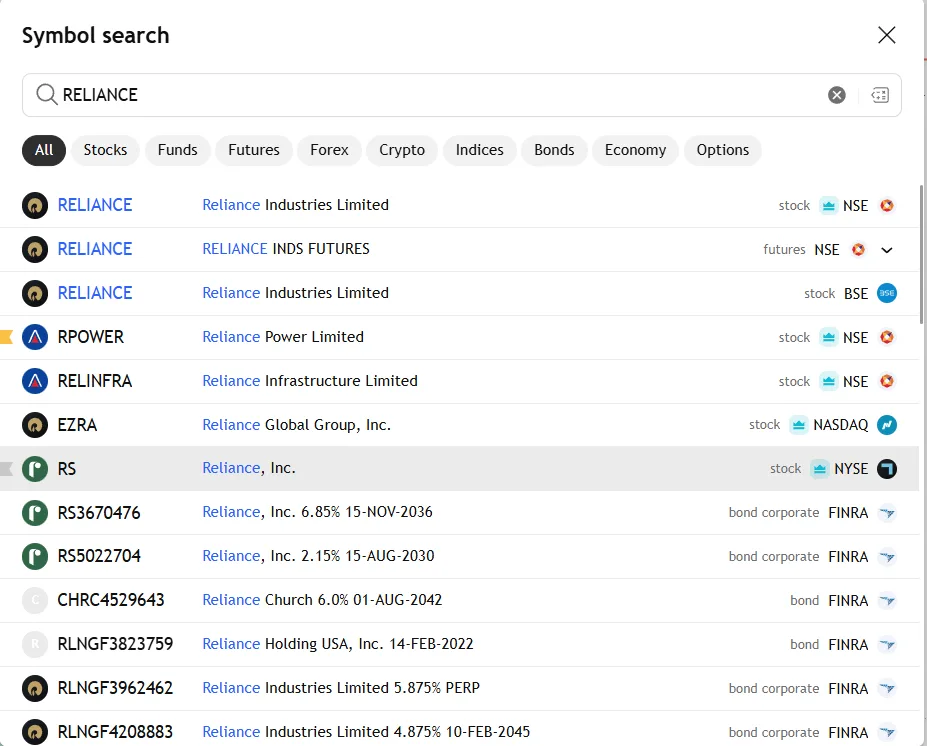
Fuzzy Logic & Descriptions
- Matches against company descriptions, not just tickers.
- Recognizes aliases and historical names.
- Filters results instantly as you type.
Asset Class Filtering
- Isolate searches to specific markets (e.g., Crypto only).
- Economy tab for macro data (GDP, inflation rates).
- Funds tab specifically for ETFs and Mutual Funds.
Mathematical Spread Charts
- Type 'NSE:TCS / NSE:NIFTY' to plot a relative strength ratio.
- Use +, -, *, / to create custom synthetic assets.
- Essential for pair trading and arbitrage analysis.
Global Command Search
- Press Ctrl+K (Windows) or Cmd+K (Mac).
- Search for 'Dark Mode', 'RSI', or 'Log Scale'.
- Eliminates menu diving entirely.
Key takeaways
- You do not need to open anything — typing any letter while the chart has focus opens Symbol Search.
- Search accepts company names, so `reliance` works as well as `RELIANCE`, and misspellings usually still match.
- Asset tabs (Stocks, Futures, Indices, Funds, Economy) filter results when one ticker exists in several markets.
- `Ctrl+K` (`Cmd+K` on Mac) opens Global Command Search, which finds settings and tools as well as symbols.
- Arithmetic works in the search box: `NSE:TCS/NSE:NIFTY` builds a single ratio chart from two instruments.
- Recently viewed symbols appear as chips at the top of the overlay, which is faster than retyping them.
Shortcut
Just type: Start typing any letter on the chart to open Symbol Search · Ctrl+K: Global Command Search
2. Exchange Codes Decoded: NSE, BSE, MCX & Futures Symbols
Every TradingView symbol has two halves separated by a colon: the exchange code, then the ticker. `NSE:RELIANCE` means 'Reliance Industries, as traded on the National Stock Exchange'. Getting into the habit of typing the prefix is the single highest-value discipline in this whole article, because ticker names are not unique worldwide. Type bare `RELIANCE` and the results list can include the NSE line, the BSE line and unrelated foreign listings; type bare `INFY` and the top hit may well be the Infosys ADR — an American Depositary Receipt, a US-listed certificate that represents Indian shares and trades in dollars on US hours — rather than NSE:INFY, which is the one your Indian broker actually fills.
**`NSE:` versus `BSE:` is not a cosmetic choice.** The two exchanges are separate order books for the same company, so they carry separate price histories. Their closing prices differ by small amounts on most days, their traded volumes differ enormously (NSE carries the overwhelming majority of turnover in liquid names), and a level you drew on `BSE:RELIANCE` will sit at a slightly different price than the same level on `NSE:RELIANCE`. Circuit halts, block deals and illiquid ticks in one book do not appear in the other. Practical rule: chart the exchange you actually trade on. For almost all retail equity and derivatives activity in India that means `NSE:` — reserve `BSE:` for the Sensex, for BSE-only listings, and for the SME segment, which trades on BSE's separate small-company platform.
**Index symbols do not follow the equity pattern.** An index is a calculated number, not a tradeable share, so it has no order book of its own. On TradingView you chart the NIFTY 50 as `NSE:NIFTY` and the Bank Nifty as `NSE:BANKNIFTY`; the Sensex lives on the other exchange as `BSE:SENSEX`. Two things follow from this. First, an index chart has no meaningful volume, because there are no shares changing hands — the volume pane will often be empty, and that is correct, not a data fault. Second, the index price and its futures price are different numbers: NIFTY 50 spot is the calculated index, while the futures contract trades at a premium or discount to it. If a level from a chart is not lining up with what you see in your broker's terminal, checking whether you are on spot or futures resolves it most of the time.
**Futures symbols and the `1!` suffix.** F&O — Futures and Options, the derivatives segment where contracts expire on a fixed date — creates a problem for charting: every contract dies, so its chart simply stops. TradingView's answer is the continuous contract, written with an exclamation mark. `NIFTY1!` means 'whichever NIFTY futures contract is currently the front month', and TradingView stitches each expiry onto the previous one so you get one unbroken multi-year chart. `NIFTY2!` is the next expiry out. `MCX:GOLD1!` and `MCX:CRUDEOIL1!` work the same way for commodities. The alternative is naming a specific contract, which gives you the true, unmodified history of that one contract — but it goes flat and dead the moment the contract expires, and it will not update again. Use `1!` for chart structure and long-term levels; use the specific contract only when you need the exact prices of a single expiry.
**Delayed versus real-time data.** Watch the small badge next to the symbol name. A green pulsing dot means live data. An orange `D` means delayed — typically by around 15 minutes, under the exchange's own rules for free access. Delayed data is perfectly fine for studying structure on a Daily or Weekly chart. It is actively dangerous for intraday decisions, because the candle you are watching form is not the candle the market is currently printing. Real-time NSE and MCX feeds are sold as add-ons inside your TradingView account settings and require you to complete a non-professional user declaration confirming you trade your own money rather than a firm's.
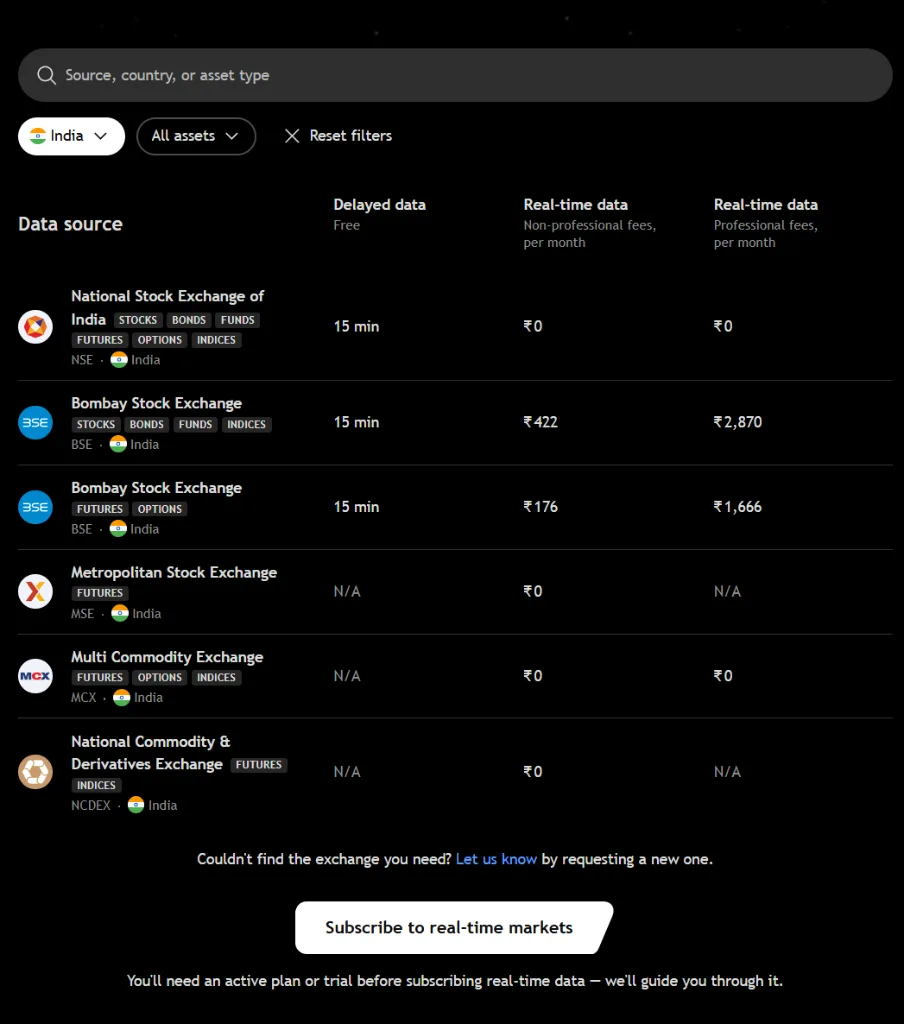
NSE — National Stock Exchange
- Prefix: `NSE:` — the default for Indian equities and derivatives.
- Equities: `NSE:RELIANCE`, `NSE:TCS`, `NSE:HDFCBANK`, `NSE:INFY`.
- Indices: `NSE:NIFTY` (NIFTY 50), `NSE:BANKNIFTY`, `NSE:CNXIT`.
- Continuous futures: `NIFTY1!` (front month), `NIFTY2!` (next expiry).
- Cash session: 09:15–15:30 IST, Monday to Friday.
BSE — Bombay Stock Exchange
- Prefix: `BSE:` — a separate order book, so a separate price history.
- Example: `BSE:RELIANCE` closes at a slightly different price than `NSE:RELIANCE`.
- The Sensex is BSE-only: `BSE:SENSEX`.
- Also covers the SME segment — smaller companies not listed on the main board.
- Use it when you actually trade on BSE, or for BSE-exclusive listings.
MCX — Multi Commodity Exchange
- Prefix: `MCX:` — India's commodity derivatives exchange.
- Bullion: `MCX:GOLD1!`, `MCX:SILVER1!`.
- Energy: `MCX:CRUDEOIL1!`, `MCX:NATURALGAS1!`.
- Trades far later than equities — the evening session runs past 23:00 IST.
- Everything on MCX is a futures contract, so the `1!` continuous form is the norm.
Live vs Delayed Data
- Green pulsing dot = live. Orange `D` = delayed by roughly 15 minutes.
- Delayed data is fine for Daily and Weekly structure work.
- Delayed data is unusable for intraday entries — the forming candle is stale.
- Real-time NSE and MCX feeds are add-ons inside Account Settings.
- You must sign a non-professional declaration: your own capital, not a firm's.
Always type the exchange prefix. `NSE:RELIANCE` and `BSE:RELIANCE` are the same company and two different charts — and the level you drew on the wrong one will not be there when you need it.
Key takeaways
- A symbol is always `EXCHANGE:TICKER`. Typing the prefix removes every ambiguity about which listing you loaded.
- `NSE:` and `BSE:` are different order books with different histories — chart the one you actually trade.
- Indices are calculated, not traded: `NSE:NIFTY` and `NSE:BANKNIFTY` legitimately show little or no volume.
- `1!` means the continuous front-month futures contract — `NIFTY1!`, `MCX:GOLD1!` — stitched across expiries.
- A named single contract keeps its true history but freezes permanently once that contract expires.
- Spot and futures are different prices. Mismatched levels against your broker's screen usually trace to this.
Critical warning
NSE real-time data is available on the free plan with a slight delay. For true real-time data, an exchange data subscription is required.
Critical warning
If the orange `D` badge is showing, treat the chart as a study tool and nothing more. A 15-minute lag means the last candle on screen is not the candle the market is printing, so any intraday entry or stop taken from it is being placed against a price that no longer exists.
Critical warning
Continuous futures charts are stitched together at each expiry, so the price series is constructed rather than raw. Long-term structure reads correctly on them, but an exact historical price on a specific past date should be checked on that expiry's own contract.
3. Time Intervals & The Master Dropdown
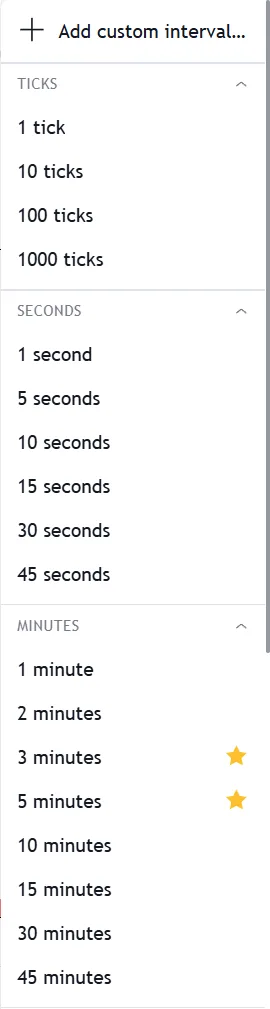
In TradingView, the 'Time Frame' or 'Interval' dictates the aggregation of price data into a single candle or bar. The Master Dropdown menu (accessible via the top toolbar or by pressing comma `,`) categorizes intervals logically into Ticks, Seconds, Minutes, Hours, Days, and Ranges.
The standard Free plan provides access to the essential intervals used by 90% of traders (1m, 5m, 15m, 1H, 4H, Daily, Weekly, Monthly). Paid plans unlock extreme granularity, such as tick-by-tick charts for order flow analysis, and custom structural intervals.
The most critical feature of the timeframe menu is the 'Favorites' system. By hovering over any interval in the dropdown and clicking the Star (★) icon, that specific timeframe is permanently pinned to your top toolbar. Professional traders use this to switch between their core timeframes instantly.
| Features | TradingView | Traditional Brokers |
|---|---|---|
| Standard Intervals (1m to Monthly) | Available on Free Plan | Available |
| Custom Intervals (e.g., 7m, 3-day) | Essential Plan & Above | Rarely supported |
| Second-based Charts (1s, 5s, 15s) | Premium & Ultimate Plans | Specialized platforms only |
| Tick-based Charts (1 to 1000 ticks) | Ultimate Plan Only | Requires expensive institutional software |
| Range Bars (Price-based, no time) | Plus Plan & Above | Limited support |
Key takeaways
- The interval dropdown opens from the toolbar or by pressing the comma key.
- It groups intervals by unit: Ticks, Seconds, Minutes, Hours, Days and Ranges.
- A tick interval counts trades rather than time — a 100-tick candle closes after 100 transactions, whenever that happens.
- A range interval counts price movement instead of time, so quiet periods print nothing at all.
- Star (★) any interval and it pins to the top toolbar as a permanent one-click button.
- Free covers the standard set; custom, second-based and tick intervals sit behind higher tiers.
Professional tip
Indian F&O traders — the derivatives segment, where contracts expire on a fixed date — commonly star 3m, 5m, 15m, 1H and 1D. That set covers fast intraday reads (3m/5m), the intraday structure most levels are drawn on (15m), the day's bias (1H), and the swing context (1D), without leaving so many options on the toolbar that you start hunting for a friendlier picture.
4. The Speed Layer: Quick Input & Custom Intervals
TradingView's fastest habit is quick input: you do not open the timeframe dropdown at all, you simply type the interval you want while the chart has focus. Type `15` and press Enter and you are on a 15-minute chart — one where each candle represents 15 minutes of trading. Type `5` for five minutes, `60` for one hour. Bare numbers are always read as minutes, which is why `60` gives you an hourly chart rather than a 60-day one. For anything longer than minutes you add a letter: `1D` is Daily, `1W` is Weekly, `1M` is Monthly, and on Premium plans `30S` is a 30-second chart. If nothing happens when you type, the chart does not have keyboard focus — click once on the chart canvas and try again.
**Why the standard intervals exist where they do.** The NSE cash session runs 09:15 to 15:30 IST, which is 375 minutes. That number divides cleanly by 5, 15 and 75, and this is not trivia — it decides whether your candles line up with the session or straddle it. A 15-minute chart gives you exactly 25 candles per day, with the first candle covering 09:15–09:30 and the last closing precisely at 15:30. A 60-minute chart does not divide 375 evenly, so the final hourly candle of the day is a stub covering only 09:15's leftover. Traders who mark opening-range levels care about this a lot: if your candles do not align with the session boundary, your 'first 15 minutes' is not the first 15 minutes.
**Custom intervals** are the Essential-plan feature that lets you build an interval TradingView does not ship. Type any whole number and it becomes a minute chart of that length: `45` gives a 45-minute chart, `123` gives a 123-minute chart. Add a suffix for other units — `3D` is a three-day candle, `2W` a fortnightly one. The genuine use case is session alignment rather than novelty. A 75-minute chart divides the NSE session into exactly five equal candles; a 25-minute chart gives fifteen. Both align perfectly to 09:15 and 15:30 in a way the default 1-hour chart cannot. For MCX, where the session runs into the evening, different divisors apply again.
One discipline worth adopting early: pick a small, fixed set of intervals and stay on them. Endlessly switching intervals until a chart 'looks bullish' is one of the most common self-deceptions in retail trading, and custom intervals make it easier, not harder. Choose your intervals before you look at the instrument, not after. A workable default for NSE equities is 15-minute for intraday structure, Daily for the trend, Weekly for context — three charts, decided in advance, applied identically to NSE:RELIANCE and NSE:INFY alike.
Change interval
15 minutes
Quick Input Syntax
- Type `5` + Enter → 5-minute chart (bare numbers always mean minutes)
- Type `60` + Enter → 1-hour chart
- Type `1D` → Daily · `1W` → Weekly · `1M` → Monthly
- Type `30S` → 30-second chart (Premium and above)
- Nothing happening? Click the chart canvas once to give it keyboard focus.
Custom Intervals & Session Fit
- Requires the Essential plan or higher.
- Any whole number becomes a minute interval: `45`, `123`.
- Suffixes extend it: `3D` (three-day candles), `2W` (fortnightly).
- NSE session = 375 minutes, so 75m gives exactly 5 candles per day.
- 25m gives exactly 15 candles per day, both aligned to 09:15 and 15:30 IST.
Key takeaways
- An interval is how much trading time one candle contains — nothing more complicated than that.
- Bare numbers are minutes: `15` is fifteen minutes, `60` is an hour, not sixty days.
- The NSE cash session is 375 minutes (09:15–15:30 IST); intervals that divide it evenly align to the session edges.
- A 1-hour chart leaves a stub candle at the end of the Indian session because 375 does not divide by 60.
- Custom intervals (Essential+) exist mainly for session alignment — 75m and 25m are the useful Indian ones.
- Fix your interval set before you open the chart, not after you have seen the price.
5. Professional Multi-Timeframe Analysis (MTA)
Multi-timeframe analysis — usually shortened to MTF, and meaning simply 'looking at the same instrument on more than one interval' — is the practice of checking that your entry on a short interval agrees with the trend on a longer one. The idea is old and not complicated: a level that matters on the Daily chart of NSE:HDFCBANK still matters when you drop to 15 minutes to time an entry, and a 15-minute breakout that runs straight into Daily resistance is a worse idea than the 15-minute chart alone makes it look. TradingView supports this in two ways — multi-chart layouts, where several intervals sit side by side, and per-drawing or per-indicator timeframe settings on a single chart.
**Drawing visibility.** The obvious problem with MTF work is clutter. A thick support zone drawn on the Weekly chart of NIFTY 50 is a sensible mark there and a wall across the entire screen on a 1-minute chart. Right-click any drawing, choose Settings → Visibility, and you get checkboxes for each interval class — ticks, seconds, minutes, hours, days, weeks, months. Uncheck 'minutes' on your weekly zones and they vanish below the hourly chart while remaining exactly where you left them above it. This is the difference between an MTF workflow that stays readable after a month and one you abandon because the chart became unusable.
**Timeframe settings inside indicators.** Many indicators carry a 'Timeframe' dropdown in their settings, which changes which interval's data the indicator is calculated from — independently of the chart you are viewing. That lets you put a Daily 200-period moving average onto a 15-minute chart, so the intraday chart carries a higher-timeframe reference line without you switching charts. The same works for VWAP — Volume Weighted Average Price, the average price paid across the session weighted by how much volume traded at each price, which is the standard intraday benchmark on Indian index futures. It works for RSI (the Relative Strength Index, a 0–100 momentum reading) and MACD (Moving Average Convergence Divergence, which measures the gap between two moving averages) too, though those are momentum tools rather than levels, and this guide's default is price structure first.
A caution that belongs with the technique. A higher-timeframe value plotted on a lower-timeframe chart updates only when the higher-timeframe candle closes. A Daily line on a 15-minute chart therefore holds one value all day and then steps. Some indicators handle this cleanly; poorly written ones repaint — meaning the line moves after the fact, so the chart's history shows a signal that was never actually available at that moment. If a multi-timeframe indicator looks unusually well-timed on past bars, test it in Bar Replay before trusting it.
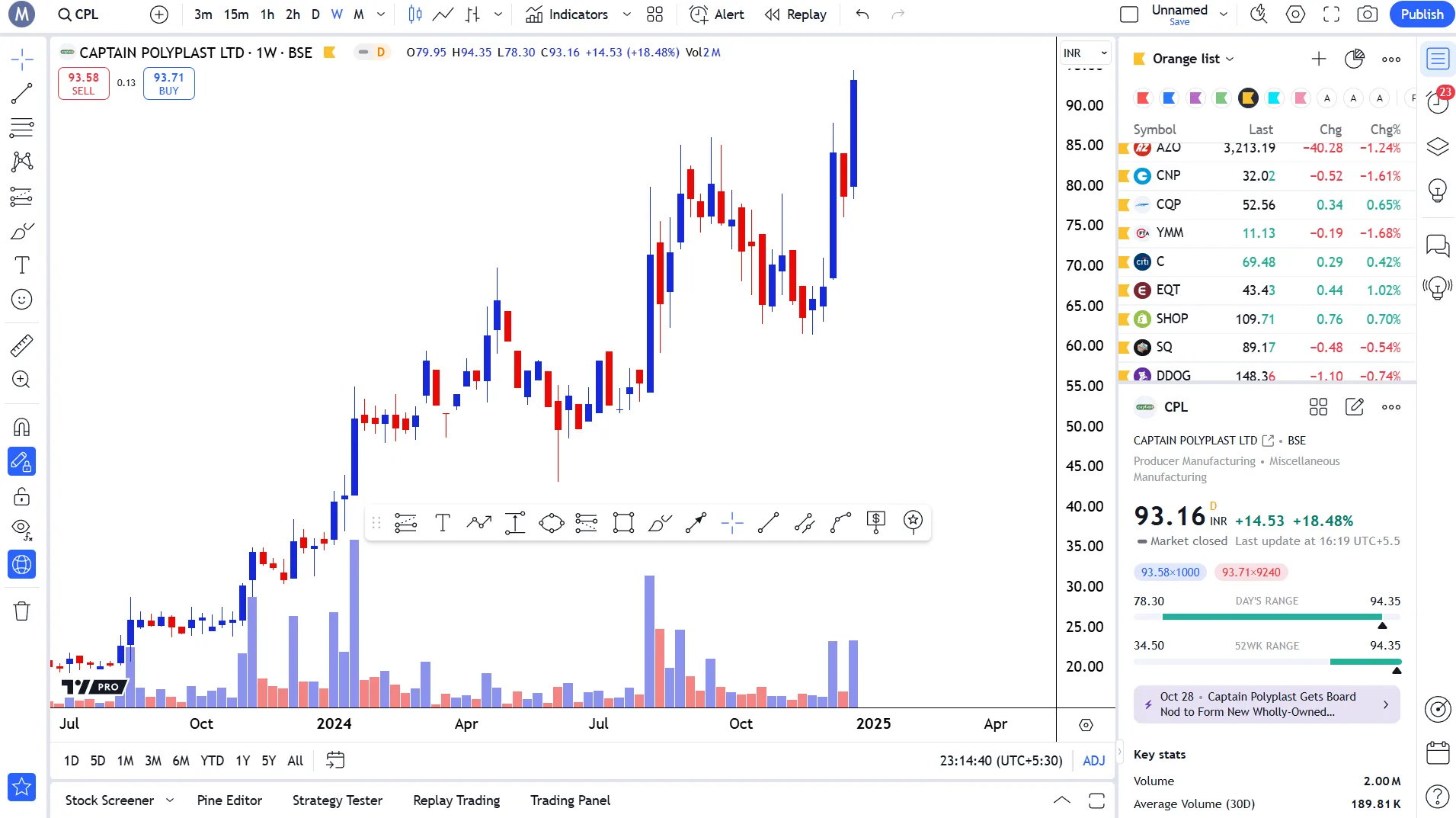
Chart clarity is an edge. Use Visibility settings to filter out macro drawings from your micro execution charts, ensuring you only see what is relevant to the current timeframe.
Key takeaways
- MTF simply means checking the same instrument on more than one interval before acting.
- Sync options in a multi-chart layout replicate symbol, interval and crosshair across every open pane.
- Drawing → Settings → Visibility hides weekly and daily zones on minute charts without deleting them.
- An indicator's own Timeframe dropdown plots higher-interval data — a Daily VWAP or moving average — onto an intraday chart.
- Higher-timeframe values only update when that higher-timeframe candle closes, so they step rather than move smoothly.
- Verify any MTF indicator in Bar Replay first: badly written ones repaint and show signals that never existed live.
6. Bottom Date Ranges — The Macro Navigator
Along the bottom edge of Supercharts sits the Date Range navigator — a row of small buttons reading 1D, 5D, 1M, 3M, 6M, YTD, 1Y, 5Y and All. Almost every new user mistakes these for timeframes. They are not. A timeframe changes how much time each candle holds; a date range changes how much history is on screen. The two are independent controls that happen to sit at opposite ends of the same chart, and confusing them is the single most common navigation mistake in TradingView.
What actually happens when you click one is worth understanding, because it is not purely a zoom. Clicking `YTD` (Year-To-Date, meaning 1 January to today) asks TradingView to fit that whole span on screen, and to do that it will often change the candle interval underneath you — usually to Daily, because trying to fit nine months of 5-minute candles into a laptop screen would be unreadable. So a date-range click can silently move you off the interval you were working on. If you have drawn levels on a 15-minute NSE:BANKNIFTY chart and then click `1Y`, you will land on a Daily chart, and your intraday marks will be there but invisible at that scale. Check the interval box after using a range preset.
The presets map naturally onto how Indian traders actually work. `1D` and `5D` give you today and this week, and pair with minute intervals for intraday work on NSE:RELIANCE or NIFTY1!. `1M`, `3M` and `6M` are the swing-trading window, sitting comfortably on hourly or daily candles. `1Y` and `YTD` are where you check whether a stock's current move is meaningful against its own year. `5Y` and `All` are for structure: multi-year bases, all-time highs, and the long consolidations that only become visible when you stop looking at the last three months.
The most under-used control on this bar is the calendar icon at its right, the 'Go to' date jump. Instead of dragging the chart backwards for several minutes, you type a date and TradingView takes you straight there. This matters for two jobs. First, event review: jump to a results date on NSE:INFY and read how price behaved into and out of it. Second, honest practice — set a date, then use Bar Replay from that point so the chart cannot show you what happened next. Scrolling by hand always leaks a little of the future onto the screen; the date jump combined with replay does not.
One limit to know in advance. How far back the date jump can take you depends on the interval and your plan. Daily, Weekly and Monthly history goes back a long way on every tier. Intraday history — 1-minute and 5-minute candles — is stored far less deeply, because it is vastly heavier data. Ask a free account for 1-minute NSE data from several years ago and it will simply not be there. That is a data-depth limit, not a fault in the chart.
Intraday & Swing Ranges
- `1D` / `5D` — today and this week; pairs with minute intervals for NSE intraday work.
- `1M` / `3M` / `6M` — the swing window, comfortable on hourly and daily candles.
- Clicking a range may change your candle interval automatically — check the interval box after.
- Ranges and intervals are independent controls; neither replaces the other.
Macro Ranges & the Date Jump
- `YTD` — 1 January to today, for reading the current year in one view.
- `1Y` / `5Y` / `All` — multi-year structure, bases and all-time highs.
- Calendar icon — type a date and jump straight to it instead of dragging.
- Pair the date jump with Bar Replay so the chart cannot reveal what happened next.
- Deep intraday history is plan-limited; Daily and Weekly history is not.
Key takeaways
- Date range = how much history is on screen. Timeframe = how much time each candle holds. Different controls.
- Range presets can silently switch your candle interval to fit the span — always re-check the interval box.
- `YTD` means 1 January to today; `All` means the full history TradingView holds for that symbol.
- The calendar icon jumps to an exact date, which beats scrolling back through months of NIFTY 50 candles.
- Date jump plus Bar Replay is the honest way to study a past setup without seeing the outcome first.
- Deep intraday history is limited by plan; Daily and Weekly depth is generous on every tier.
Critical warning
Dragging a chart backwards by hand to study a historical setup shows you the future price on the right edge of the screen before you have formed a view. If you are practising, jump to the date and start Bar Replay instead — otherwise you are marking your own homework.
Unlock TradingView Pro
More charts per layout, custom timeframes and more indicators per chart.
Common questions
The most precise way is to use the exchange prefix. Type 'NSE:RELIANCE' for the National Stock Exchange listing, or 'BSE:RELIANCE' for the Bombay Stock Exchange listing. You can also simply type the company name, and TradingView's fuzzy search will show you all related listings across different exchanges. Ensure you click the correct one with the Indian flag icon.
Official TradingView resources
- Help CenterMedian block intervalWhat is "Median block interval"?The median time in seconds between consecutive blocks, defined as the central value of the interval distribution over ...
- Help CenterLines become non-parallel when switching intervalDrawings that are parallel when applied to an interval, might be non-parallel on another one — this is expected.For example, we added 2 parallel lines...
- Help CenterDrawings are passing through different points on another intervalDrawings may be displayed differently on various time intervals of the same symbol. One of the reasons for that is that lower time frame contains more...
- Help CenterHow to set drawing visibility on different intervalsOpen the drawing object settings, select Visibility tab and enable intervals where the drawing will be displayed....
Keep reading
- Module undefinedTop Menu & Account BasicsNavigating the control panel — profile settings, home, help center, and dark mode.
- Module undefinedChart Types — Complete GuideFrom candlesticks to Heikin Ashi — choosing the right visualization for every analysis.
- Module undefinedCompare Feature & Overlay AnalysisRelative strength, correlation analysis, and pairs trading using the Compare tool.
- Module undefinedIndicators, Metrics & StrategiesYour complete technical analysis toolkit — from moving averages to Pine Script.

Written By
Rohit Singh
Mr. Chartist
With 14+ years of experience in Indian financial markets, Rohit Singh (Mr. Chartist) is a SEBI Registered Research Analyst, Amazon #1 bestselling author, and the founder of Investology — a premium trading ecosystem trusted by a 1.5 Lakh+ strong community across India.
TradingView is a registered trademark of TradingView, Inc. All screenshots, logos and platform imagery are the property of TradingView, Inc. and are used here for educational purposes only under fair use. This content is not affiliated with, endorsed or sponsored by TradingView. (c) 2026 TradingView, Inc. All rights reserved. www.tradingview.com